
Getting started
How to use it
Finish one frame first. Confirm it is online and the picture has updated, then copy the same steps to the other devices.
- Install ePaperFrame Link and finish registration.
- Long-press BUTTON for 3 seconds so the frame powers on and enters Wi-Fi setup.
- Pair Wi-Fi in Link. After the success prompt, wait about 30 seconds — the device then appears in CMS.
- Open cms.epaperframe.com/app. Choose the China / Global server and sign in.
- In Devices, confirm Online, then create a Group / Subgroup by store or project.
- In Albums, create an album and prepare images.
- One still: Devices → Send Image → crop → Send. Automatic rotation: Slideshow → Save inactive → Activate.
- Return to Devices and open History.
Install ePaperFrame Link
- Android: Google Play — ePaperFrame Link, or the package
ePaperFrame Link-release.apk. - iOS: App Store — ePaperFrame Link.
- Mainland China: ask after-sales for the domestic package.
If the phone blocks apps from unknown sources, temporarily allow the current browser or file manager to install this APK. After opening Link, grant WLAN, nearby devices, and location when asked.
The InkJoy Frame app (iOS / Android) can also pair over Bluetooth and send one photo. See Buttons, LEDs & app.
Connect the frame to Wi-Fi
- Long-press BUTTON for 3 seconds to power on. Confirm the setup prompt or QR code on the panel.
- In Link, open Add device / Wi-Fi setup and wait for nearby devices.
- Select the target, enter the Wi-Fi name and password, and submit.
- The device refreshes a pairing-success image. Wait about 30 seconds, then manage it from CMS.
If the setup screen never appears, double-click BUTTON. Or press RESET once with a pin, wait until the three-color light goes out, then power on again.
If it stays offline for a long time: check the password, whether the network is usable, and whether the device is too far from the router. LED meanings are on Buttons, LEDs & app.
Sign in to CMS
- Open cms.epaperframe.com/app.
- Choose the server that matches the account: China or Global.
- Enter the email and password registered in the app, then click Sign in.
The same account manages its devices, albums, and slideshows. If sign-in fails, check the account, password, and server region first.
/app uses the live OpenAPI. A green “queued” or “accepted” state does not mean the panel has flipped.
Next
- Devices — list / cards, status
- Send — one image, batch, and crop
- Slideshow
- Buttons, LEDs & app
- Function Specs
Demo
Open cms.epaperframe.com/demo. The US account is 3 cities, 6 stores, and 18 frames. The UK demo is three accounts — headquarters and two stores — see UK demo permissions. No InkJoy account is required.
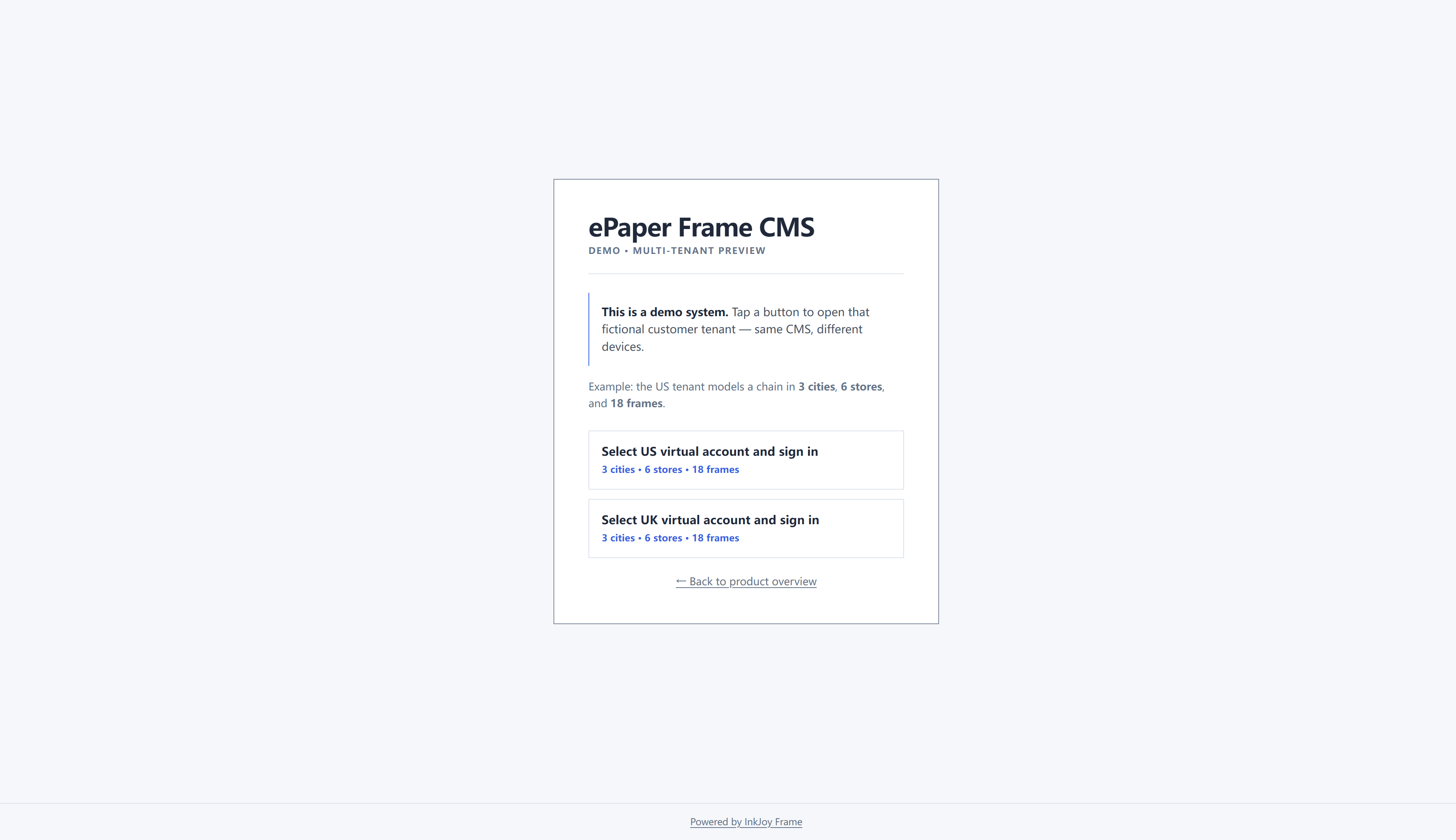
Walk through the four tabs:
| Tab | First thing to try |
|---|---|
| Devices | Expand a store, check online / sleeping, open History |
| Albums | Open Seasonal Menu and drag an image onto a frame in the sidebar |
| Slideshow | Compare an Active daily plan with an Interval card |
| Campaigns | Open the sample draft and look at the 00:00–24:00 axis |