
Albums
Albums store prepared assets. Those assets can be sent as one image, rotated as a whole album, or placed on a campaign schedule.
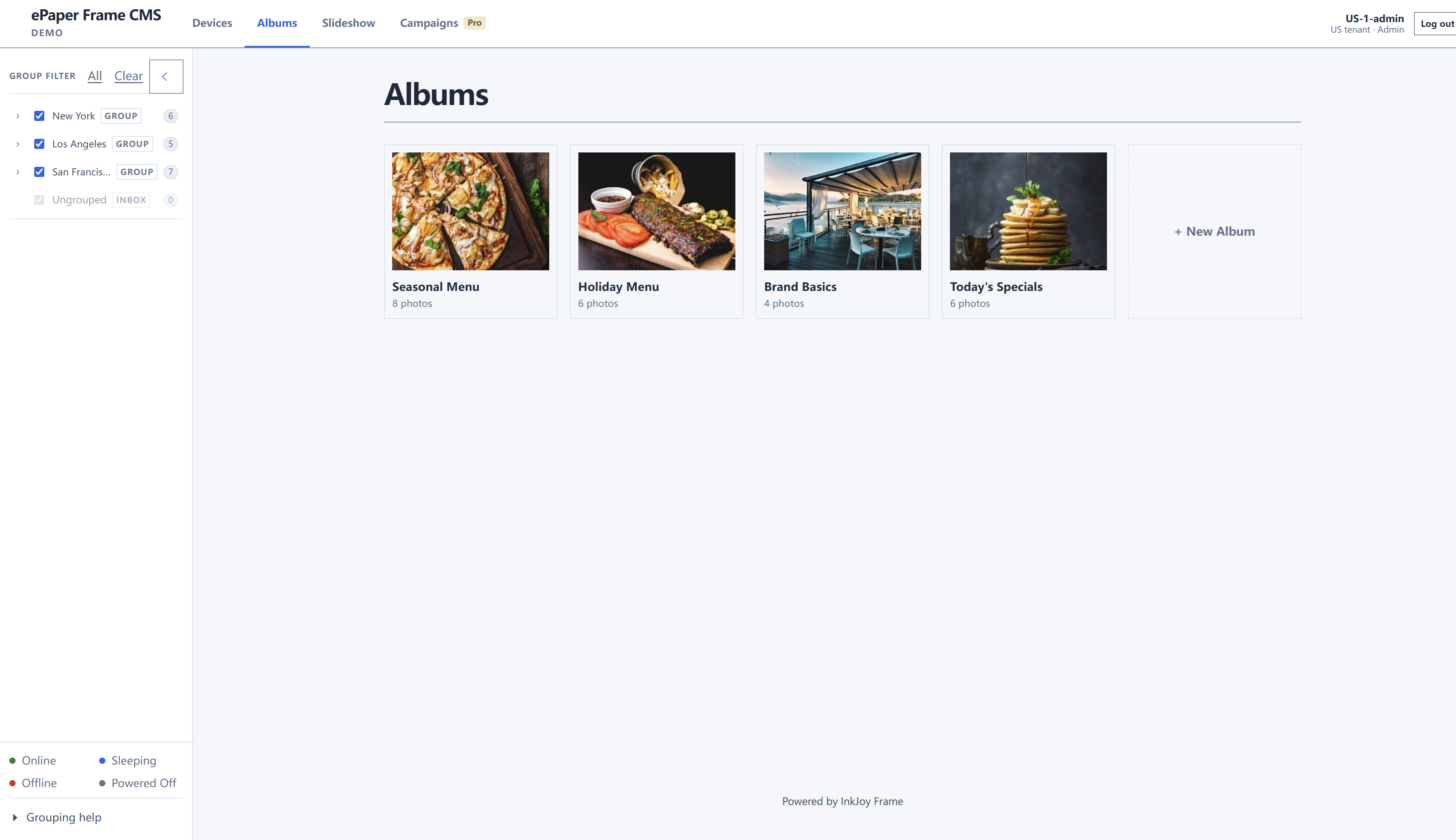
Create an album
- Click + New Album.
- Type the name in Album name.
- OK to create, Cancel to leave.
Name by scene or content type: brand assets, holiday posters, today's specials, store menu. Then open the album and add stills before you send or attach a slideshow.
Open an album
Click a cover to see its photos. From here you add, delete, or drag a still onto a frame in the sidebar.
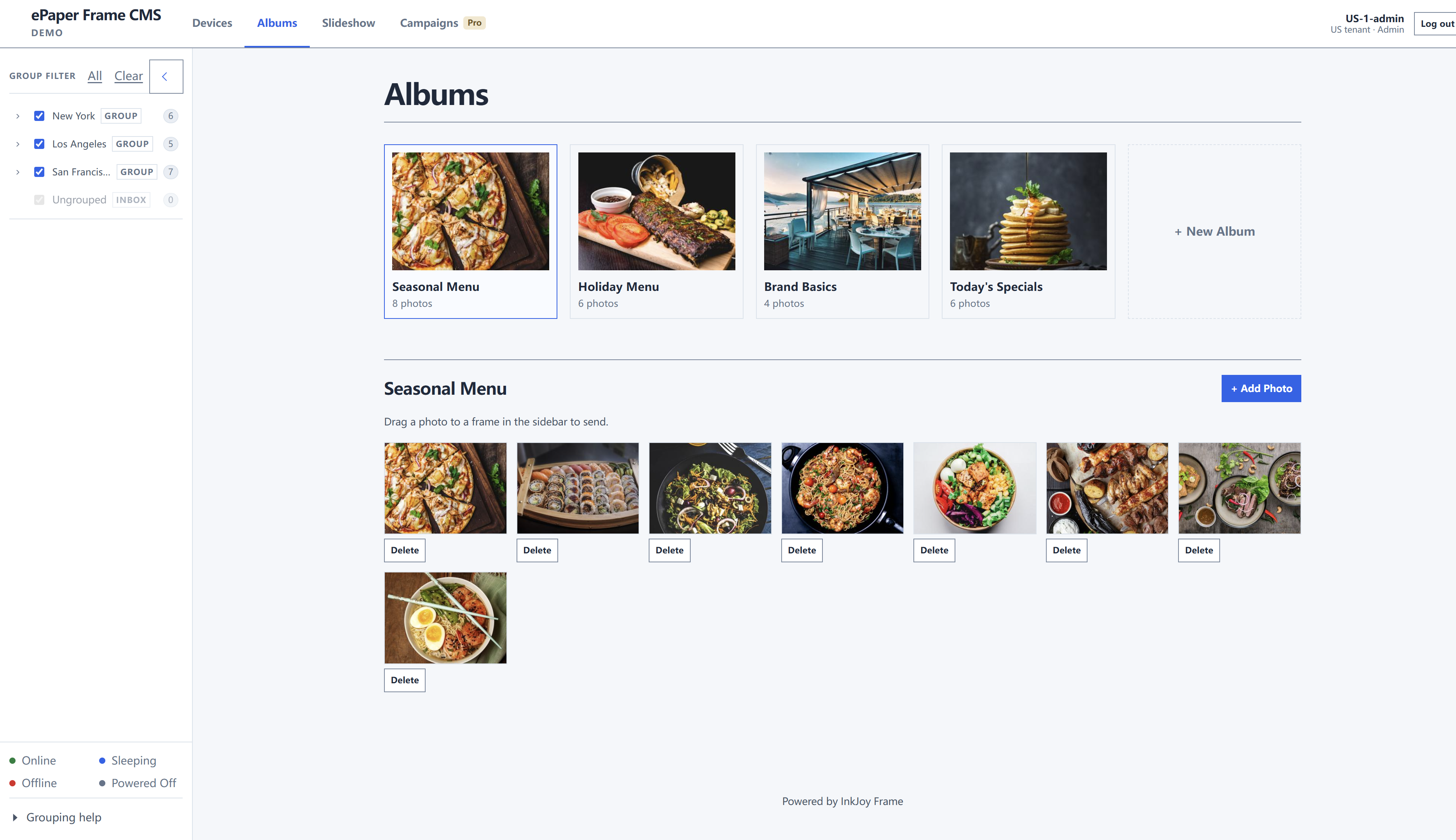
Add Photo adds more images. Delete removes an image.
Send
From an album, drag one image onto a frame in the sidebar.